Circles & Tangents

Circle & tangent

Desmos – Circles & Tangents

Use Desmos to explore tangents to circle through given point

Teaching Year 10 about the equation of a tangent to a circle at a given point I have created a Desmos page. I have also created a Diagnostic Questions Quiz using questions on circles (centre the origin) from Diagnostic Questions.
(pdf: quation of a Circle & Gradient of Tangent)

(Also added to GCSE New Content page)

Further Desmos Updates

An early introduction – plot some points and functions
Desmos – points & functions (for PowerPoint file)

 Graphs-GCSE for PowerPoint file

A Classroom Toolkit

Thinking about some of the daily tools I like to have to hand………..

Calculating FinancesTop of the everyday tools list has to be Desmos and Wolfram Alpha; there are also numerous calculators and resources available; this collection is on Mathematics for students which means students can use anything themselves at home having seen it demonstrated in class. I also like to display definitions, the Reference page on Mathematics for students has very useful dictionaries and glossaries.

An annual job for me is setting up my homework blog. I always put homework details online as well as explaining it in class. I use a blog (which doesn’t turn up in web searches) with a page for each class. I find publishing the details online for students makes me think about explaining it carefully and I can also give any links to resources which may help. None of my students can ever say to me that they didn’t know what the homework was!


I want to easily lay my hands on any of my resources so Evernote is ready to go with a notebook for each class where I can put any resources or ideas / random thoughts using my phone or computer. I was reminded of the wonders of Evernote search recently – I will be looking at Surds with Year 10 – a search on surds in Evernote rapidly returned every resource I had ever created. It also returned any document, specifications for example with the word Surds in it. I want to make sure I tag notes really well this year to make things even simpler to find.

I also us my own blogs! For example I can remind myself of all the Starters I like, Problems & Activities or ways to end lessons, find Rich Tasks….the list goes on! You can see the various page tabs near the top of the blog. Certainly – however you do it, make sure you can rapidly find anything you need so you can really concentrate on thinking about your students’ learning; see Lesson Planning.


Mike Hadden - Random Student

Mike Hadden – Random Student

If you want to make sure that you include all students in your class then some kind of system for choosing students is very useful, for a simple and very effective low-tech way then read Harry Fetcher-Wood’s excellent post and make some lolly sticks cards! Harry’s post includes discussion on the fact that this can be contentious; I think the key is to use this technique when appropriate and be very clear that it is OK to be unsure but good to contribute in some way. I let students know that a suitable response includes a question back to me. Another offline option is to use one of Mike Hadden’s many excellent spreadsheets – look at the ‘Other’ section for the Random Student spreadsheet. You can easily create a spreadsheet for each class.

Random Name Selector - Primary Technology

Random Name Selector – Primary Technology

For an online option this random name selector by John Mclear on Primary Technology will randomly select a name from a list you can easily input. Once you have input a list of names you can then save the list as a link. It is possible to remove a name from the list once it has been chosen.

You can save a list of names so have easy access to lists of all your classes by just having the link somewhere easy to access.

Classtools.net Random Name Selector and Countdown Timer

Classtools.net Random Name Selector and Countdown Timer

classtools.net has numerous flash templates which allow teachers to create diagrams, activities and games. As with the previous random name selector the resource on classtools.net also allows you to save a list of your own for easy access later. ClassTools also has an excellent countdown timer which gives you a choice of soundtracks of varying lengths; this is a Flash resource an alternative HTML5 timer where you can add a video and save a link to your customised timer is also available.


stationeryYou may need some specialist paper – coordinate grids, isometric or polar paper for example. See For (Online) Stationery Geeks! I always have a set of whiteboard flipcharts to hand where I already have pages with coordinate grids and any other stationery / background I want.


Whiteboard toolsFor online options check some of the whiteboard tools in the Writing Mathematics Online post including  the interactive whiteboard manipulative from Glencoe  (I came across this in a Google search). Note all the backgrounds and manipulatives available.

For demonstrating ruler and compass constructions look at Bruno Reddy’s lovely Geometry toolbox which can be found on the teachers’ section of his excellent site.

For some fun with crayons try this Crayola colouring application or amuse your students with the writing repeater!


Name card

I will be using my name cards again this year as I found that these really helped me learn the names of my students – collecting the cards at the end of the lesson is a further chance to fix the student names in your head!


Top 100 Tools for Learning 2015 – Voting

Top 100 ToolsJane Hart of the Centre for Learning and Performance Technologies is still accepting votes from educators for the Top 100 Tools for Learning 2015. This list is based on contributions from learning professionals around the world. Voting closes at noon GMT on Friday 18 September 2015 and Jane will reveal the 2015 Top 100 Tools list on Monday 21 September 2015.

So my own top tools for learning (note these are not subject specialist sites apart from the last two which I just have to include!)

Evernote  – an outstanding note-taking tool and something I use every day. I have a notebook for each of my classes to which I upload any resources I want for that class; I also jot down any ideas I have for each class. I can use it on any PC or my tablet or my phone. It is also a good way to share for example a list of websites with students – using a shared notebook. (Blog post on Evernote).

WordPress  – obviously – you are reading a WordPress blog right now! I have several other blogs, GamesStarters and for students I have created Mathematics for Students and something I am very pleased with is a blog I use to give the details of homework for each of my classes. I created ‘What was that homework?’ as a result of a survey of students across several schools where many students said that they would like homework details online. No student can ever say to me that they didn’t know what their homework was! I also have blogs on useful tools for students and teachers generally. (The very first post on this WordPress blog – which includes some useful WordPress links).

Google which is a vote for Google search. See Google help on search or this Google Guide

Twitter  – great for professional development – I have contacts in education all over the globe and have been led to many useful resources by my virtual colleagues! See Mathematics Conversations. and this post on Twitter.

Slideshare  – it is very easy to upload presentations to this (free) presentation sharing site; the two shows above are examples. Presentations for teachers or students could be uploaded for example.

PowerPoint I can’t really have Slideshare without including PowerPoint in my list because that’s where I start with my presentations, often with a little help from the interactive whiteboard software. It is interesting to see how popular PowerPoint was last year at number 4 in the 2014 list, other tools such as Prezi makes a change, but it’s so important to remember that it’s the content that matters!

Excel (43) is something I use everyday in my job to present data to staff; I also use many spreadsheets for teaching. Of all the applications in the Office suite this stands out for me, the changes from Excel 2003 to 2007 with the massive improvements to conditional formatting for example make this one outstanding application. There are also many Excel spreadsheets out there too to help in Maths lessons – see Maths Files for example.

Diigo I have saved many hundreds of bookmarks using this social bookmarking / annotation tool; I can even find them again! There are numerous examples of Diigo lists on this site – see this on Statistics and Probability for example;  (Digital Tools blog page on bookmarking). I think it is because I find Diigo so easy to use that I still like it. Always liking the idea of a backup plan – all my Diigo bookmarks are sent automatically to Evernote (8) via ifttt (a new entry in 2014). I also have Diigo set up to send the bookmarks to Delicious.

Now obviously the list is not about specialist sites for various subjects, The Top >10 Mathematics Websites is another story but I am choosing these ten tools because I use them so much in my job. So the last two sites on my list are mathematical in nature.

WolframAlpha.  WolframAlpha is not just all about Maths, it covers so many subjects and even though they would love us to pay for WolframAlpha pro, the free model still offers unlimited queries everyday!

Desmos, the outstanding graphical calculator deserves a vote in my opinion, it is wonderful for learning mathematics, accessible for young students yet has the sophistication required for university students. Brilliant.

Here’s the 2014 Top 100 Tools; it will be very interesting to see the changes in 2015.

Desmos dot to dot

Continuing with my Desmos theme (see the excellent Activity Builder from last week), a happy discovery – you can join plotted points on Desmos. This is ideal for creating cumulative frequency graphs for example – see the example in the following slides.

For completeness, so all the information and examples on Desmos are in one place, I have added pages to the Desmos series.

Note for example a little dancing with Desmos!
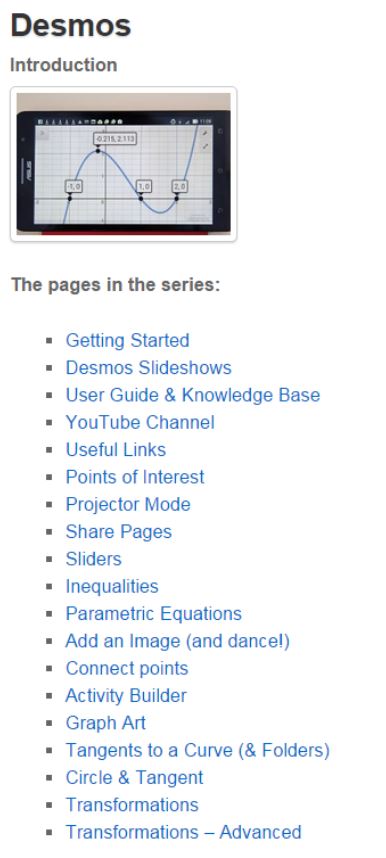
Desmos series

Desmos Activity Builder

A superb new addition – Desmos have created an activity builder for teachers, this enables the creation of interactive Desmos-based classroom activities. A series of pages can be created – any combination of graphs, questions or text. Having created and saved the activity a code is then associated with that  activity which your students enter at student.desmos.com.

CY Desmos Activities

A simple experiment for my first activity – identify the lines x=k and y=k.
Activities are very easy to create, the interface is intuitive; images can very easily be added by dragging them to the page.

This slideshow requires JavaScript.

Once students have tried the activity and submitted answers to any questions a teacher can see all their submitted responses. This is certainly something I will be using with my students in the coming academic year. I have various slideshows for Desmos which I can now create activities for. (For more on Desmos, see these pages).
Student